Adding a promo to a page
Open a promo from a button or a navigation link on any of your Qbits.
A button or a navigation link on any of your Qbits can open a promo. Visitors tap it, the promo plays full screen, and closing it brings them back to the page.
Pointing a button at a promo
- Open the Qbit and select a Button, or a link in a Navigation block.
- Under Destination, choose Promo.
- Click Choose a promo and pick one.
- Publish the page.
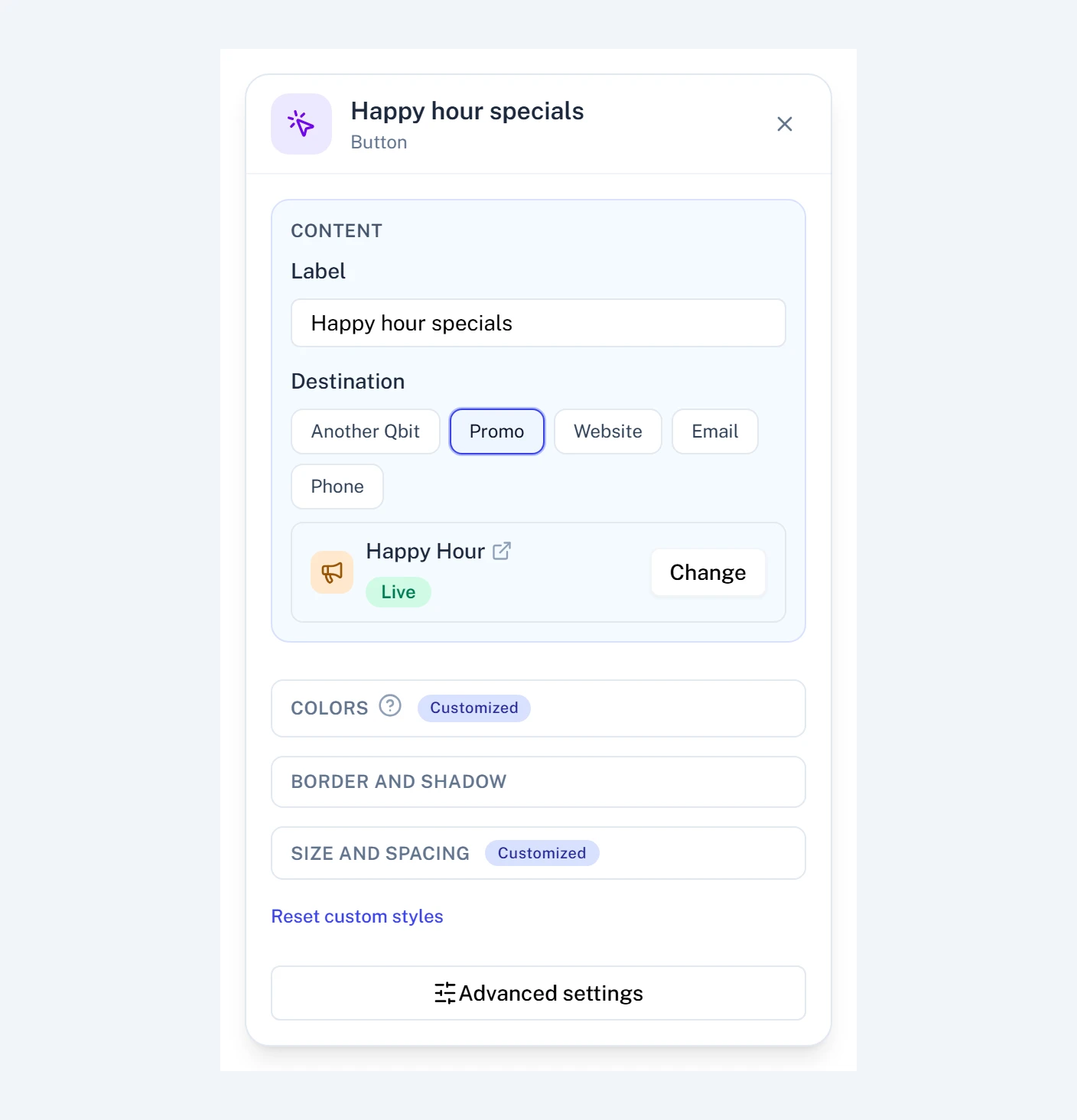
The card shows the promo's name and where it stands: Live, Scheduled, Paused, Ended, or Draft. Click the name to open the promo in a new tab, or Change to pick another.
When visitors see the button
Visitors see the button or link only while the promo is live. If the promo is a draft, paused, or outside its dates, the page leaves it out, so nobody taps a button that goes nowhere. It comes back by itself when the promo is live again, with no need to publish the page.
In the editor the button always stays, with a note when visitors can't see it.
If you delete a promo, the buttons that opened it stay on your pages but are hidden from visitors. Choose another promo for them, or remove them.
Seeing which pages use a promo
Open the promo and go to the Settings tab. Where it shows lists each page that opens it. A page marked Not published yet has the button in its draft only.
On the Results tab, Where it was seen counts the views that came from each page.
Still stuck? Email support@qbit.codes.