
Creating a promo
Pick a design, add your photos and words, and publish when it looks right.
A promo is a few full-screen slides, each a photo with a headline on top: tonight's drink special, this week's lineup, a new item on the menu. You choose a design and supply the photos and words. The design takes care of the layout, the fonts, and how it plays, and you can swap in your own fonts and colors.
Starting a promo
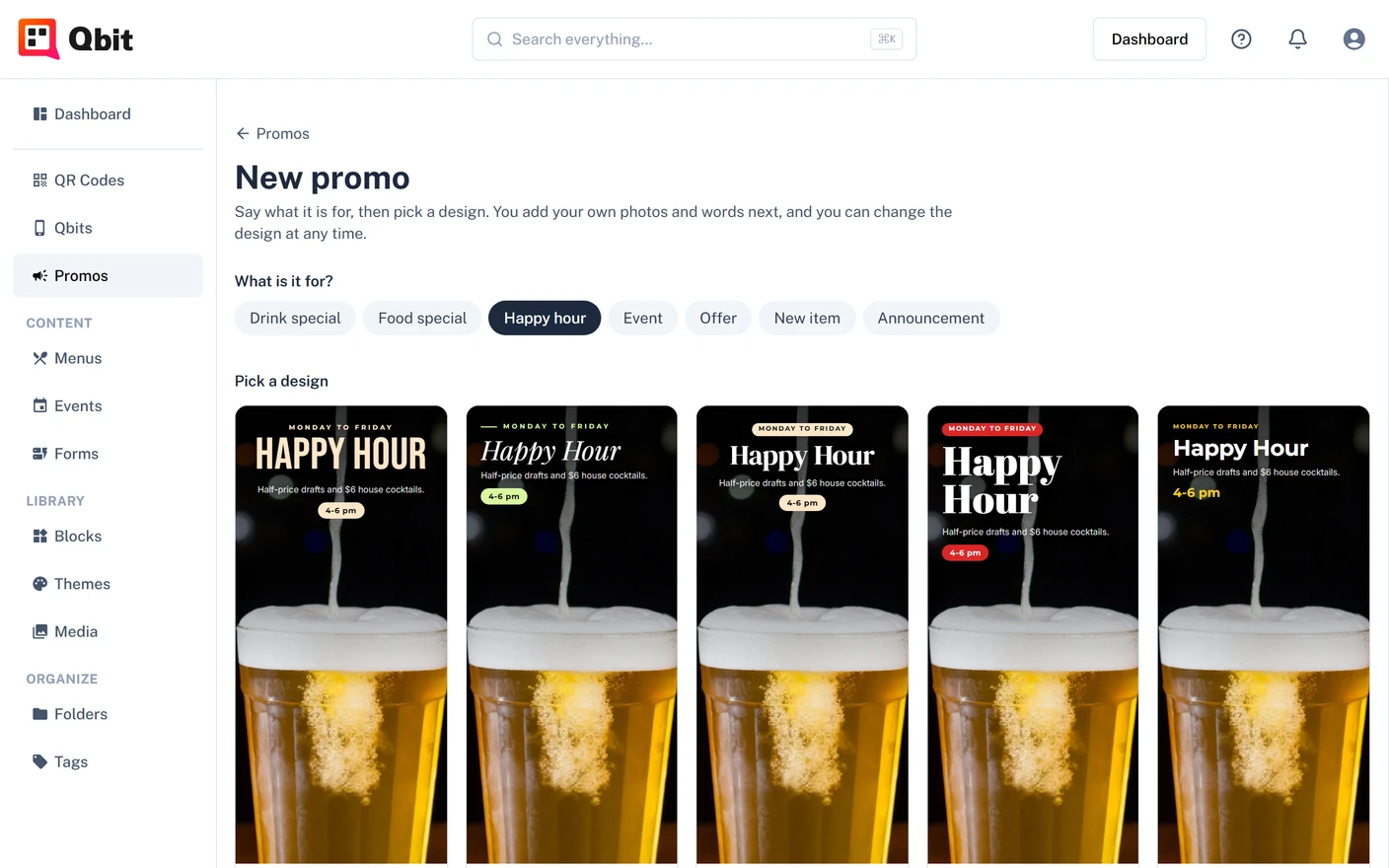
- Go to Promos in the sidebar and click New promo.
- Under What is it for?, choose the closest fit. Each design redraws with sample slides for that purpose.
- Click a design to watch it play in a phone.
- Give the promo a Name and click Use this design. Visitors never see the name.
The promo opens with the sample slides, ready for you to replace.
Writing your slides
The Slides tab shows your slides across the top, in the order they play. Select one to edit it: its fields open underneath. Click Add slide to add another. A promo holds up to 10 slides.
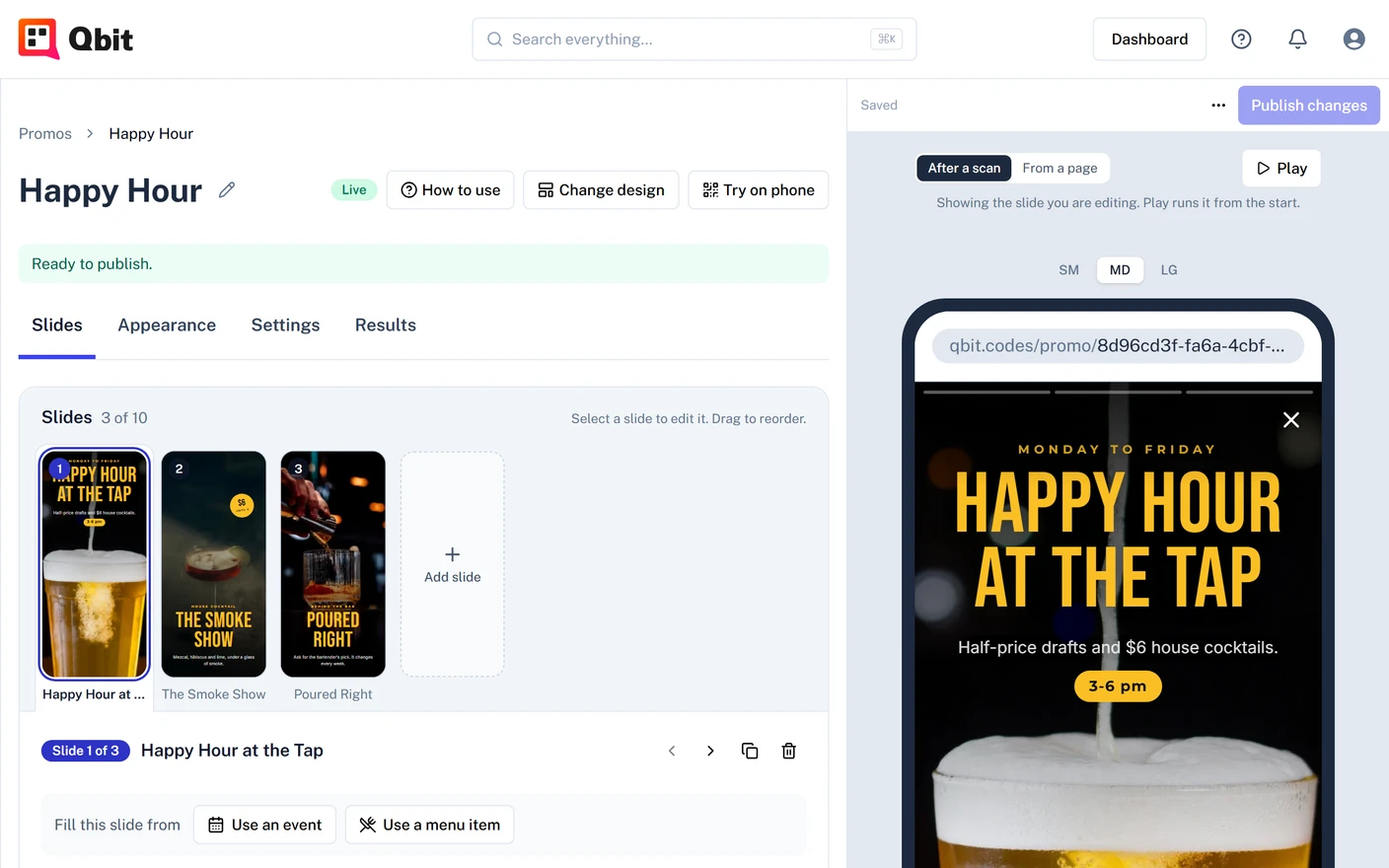
To change the order, drag a slide to its new place. On a touch screen, press and hold a slide first. You can also use the buttons beside Slide 1 of 3 to move a slide earlier or later, duplicate it, or delete it, or point at a slide and click the bin in its corner to delete it.
To start a slide from something you already have, click Use an event or Use a menu item above the slide's fields and choose one. The slide takes its name, details, and photo, in place of what it said before. It's a copy: changing the event or the menu later doesn't change the promo.
A slide's fields are grouped under Photo, Words, Extras, and Button:
- Photo - click Choose photo to pick an image from your media library, upload one, or use a free photo. Tall photos fill a phone screen best. Then drag the dot on the small picture onto the part that matters most, so the crop keeps it in view on every phone.
- Where the text sits - Top, Middle, or Bottom. Put the text where the photo is calm.
- Badge, Title, Subtitle, Detail - the words on the slide. Detail suits a price, a date, or a time.
- Callout and Callout caption - the round sticker, for a price or an offer.
- Fine print - terms, age limits, "while supplies last".
- Button - a slide has no button of its own to begin with. Click Add another button, then give it a label and choose where it goes: a Website, A Qbit, a Phone number, or an Email address. Click Remove button to take it off. After a scan, every slide also shows Continue to site.
Every field is optional, and an empty field takes no space. The count beside each field shows how much text the design fits. If you go over, shorten the text or choose a design with more room.
Choosing the look
On the Appearance tab:
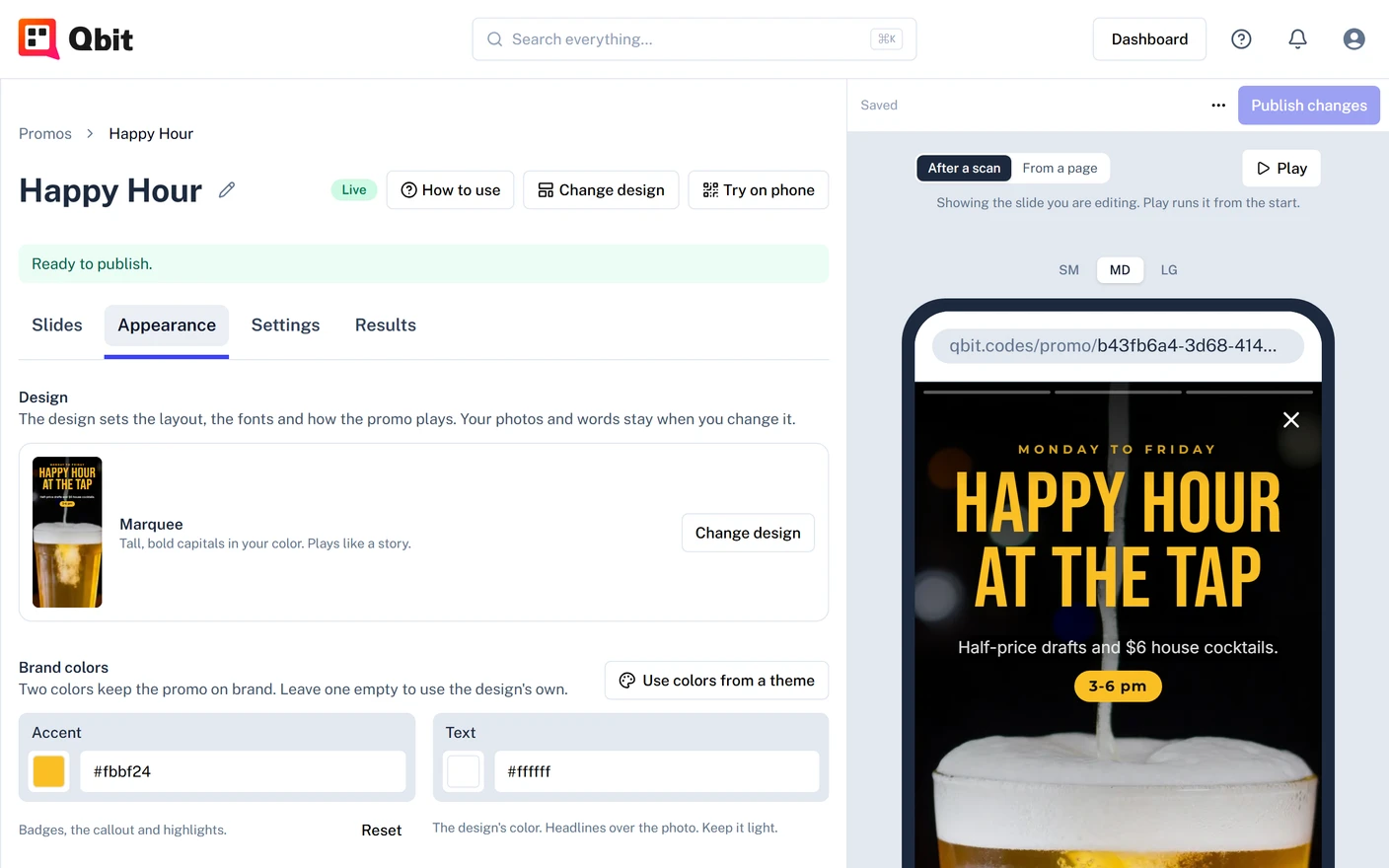
- Change design shows every design drawn with your own first slide. Your photos and words stay when you switch. The same button sits at the top of the studio, next to How to use, so you can switch from any tab while you try the promo on the phone.
- Brand colors sets an Accent and a Text color. Leave one empty to use the design's own. Use colors from a theme copies the colors of one of your themes into the promo. A later change to the theme doesn't change the promo.
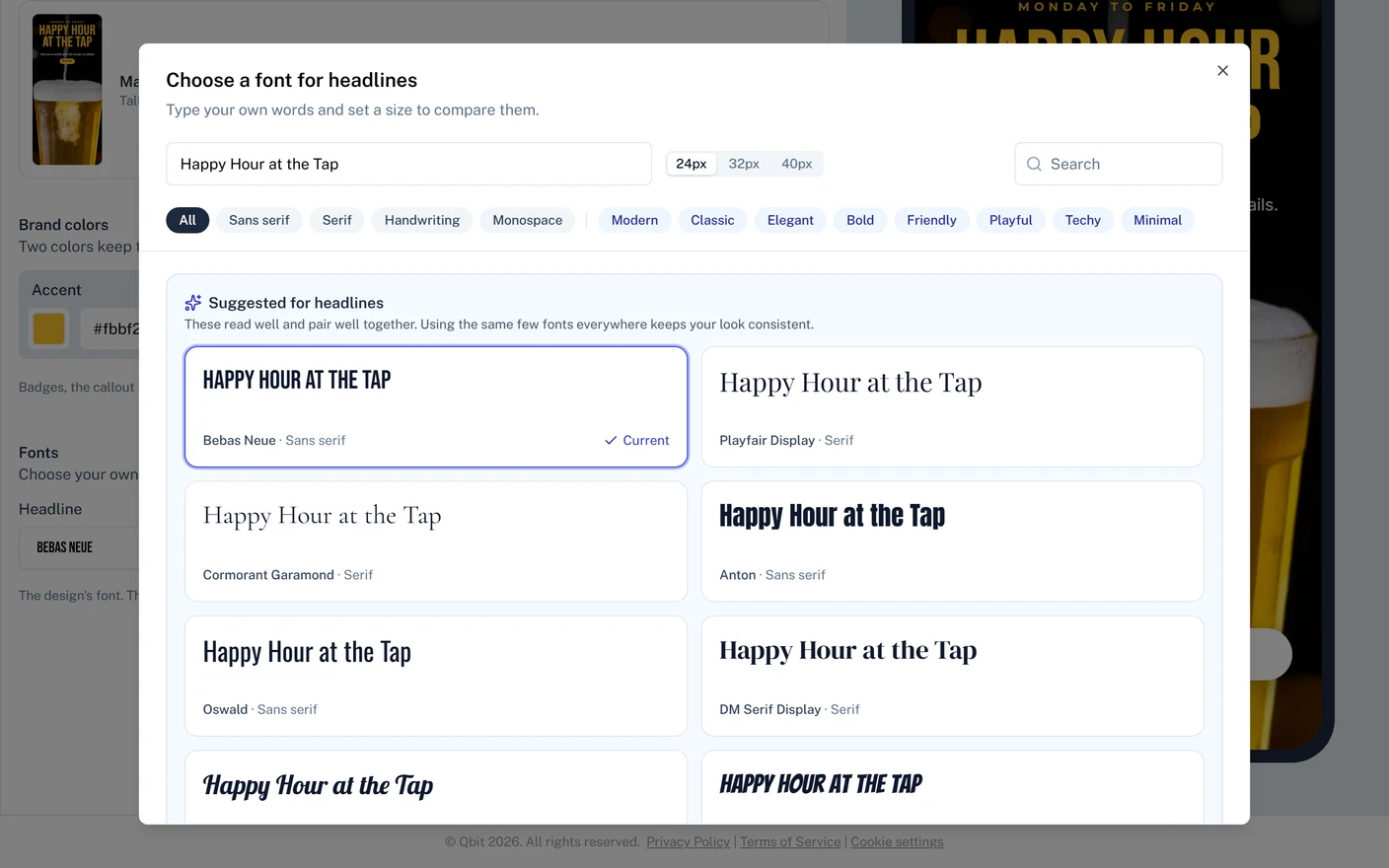
- Fonts sets a Headline font, for the title and the callout, and a Text font, for the smaller lines. Each one opens with a few suggested fonts that read well on a phone, then every font. Sticking to the suggested ones keeps your promos consistent. Your fonts stay when you change design, and Reset goes back to the design's own. If a font is too wide for a field, the studio tells you which one to shorten.
Checking it on a phone
The phone on the right shows the slide you're editing and redraws as you type. On a small screen, tap Preview to open it. Click Play to run the promo from the first slide, the way a visitor sees it. After the last slide it waits a few seconds, with Watch again to start over at once, then plays again from the start. After a scan and From a page switch between the two places a promo shows.
Click Try on phone to scan a code that opens the draft full screen on your own phone. The phone has to be signed in to your organization.
Publishing
Your changes save by themselves as a draft. Nothing a visitor sees changes until you click Publish, in the bar above the phone.
A line above the tabs says what still needs attention, and a slide with something to fix carries a red mark. Click Show them to see the list, and click an item to go to it. A promo can't publish while a slide still has a sample photo, has more text than the design fits, or has a button that goes nowhere.
After you publish, later edits stay a draft until you click Publish changes. To return the promo to the published version, open the ... menu beside it and choose Discard changes.
Pausing and scheduling
On the Settings tab:
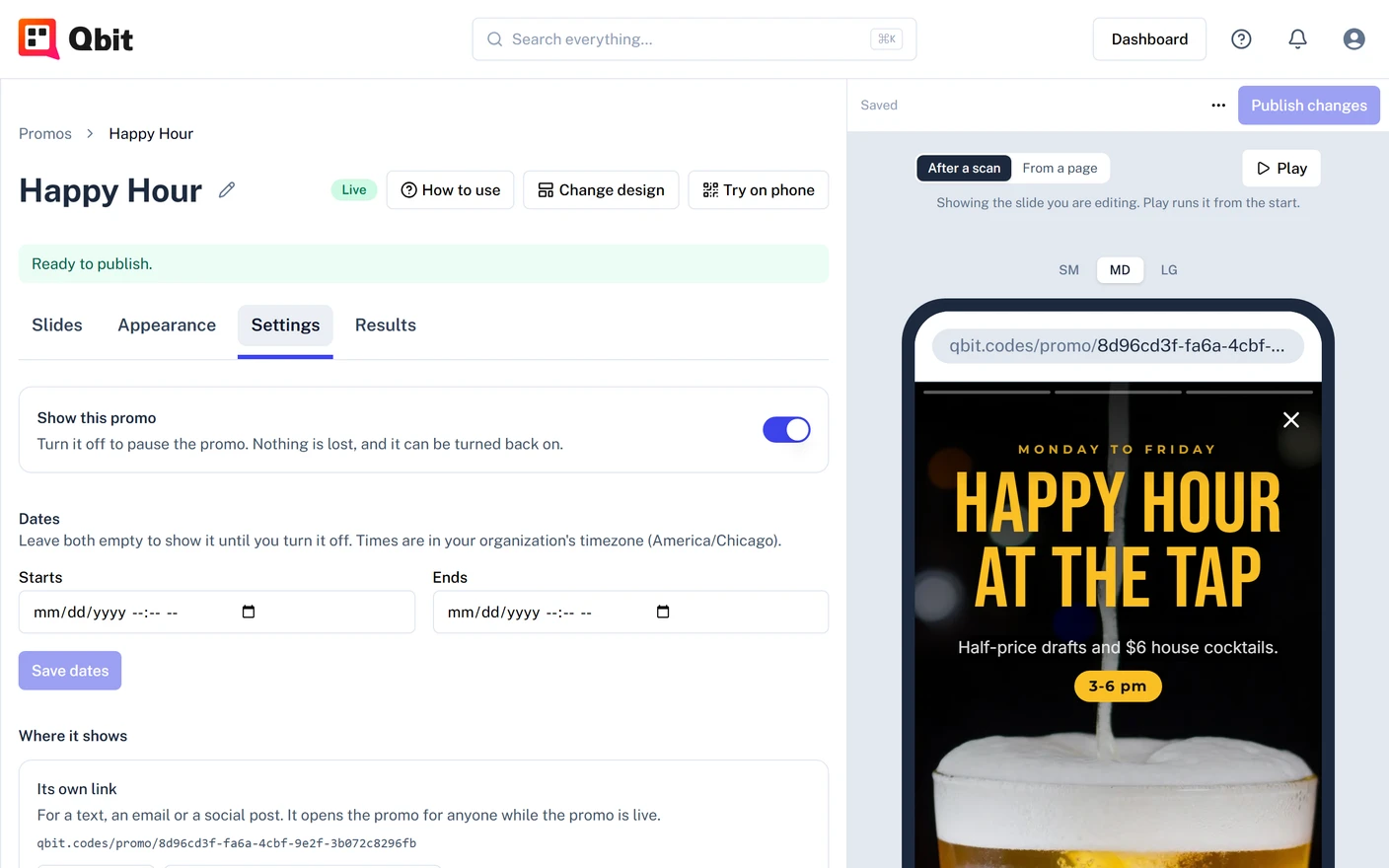
- Turn off Show this promo to pause it. Turn it back on at any time.
- Set Starts and Ends to show the promo only between two dates. Times are in your organization's timezone.
Both take effect right away, with no publish.
Showing a promo after a scan
A QR code can show a promo before it opens its page or website.
- Open the code from QR Codes.
- On the Destination card, click Add a promo and choose one.
How to use at the top of the studio shows these steps too.
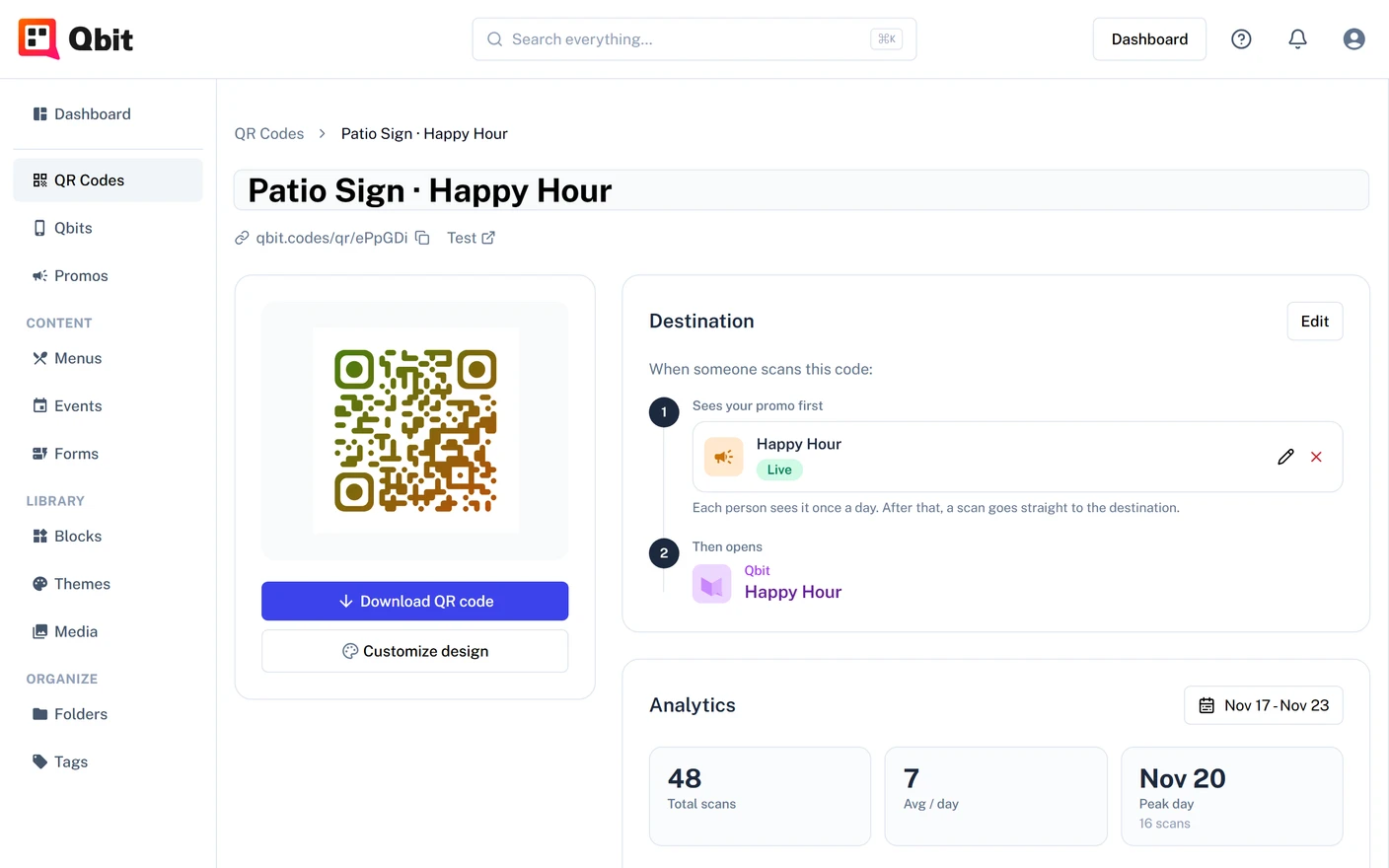
From then on, someone who scans the code sees the promo first, with Continue to site on screen the whole time. Each person sees it once a day. After that, a scan goes straight to the destination.
A promo that isn't showing (a draft, paused, or outside its dates) is skipped, and the scan goes straight through. The card says where the promo stands.
To connect one promo to many codes, switch the QR Codes list to the table view, select the codes, and click Connect promo.
The Test link on a code's page shows the promo every time and doesn't count as a view.
Sharing a promo's link
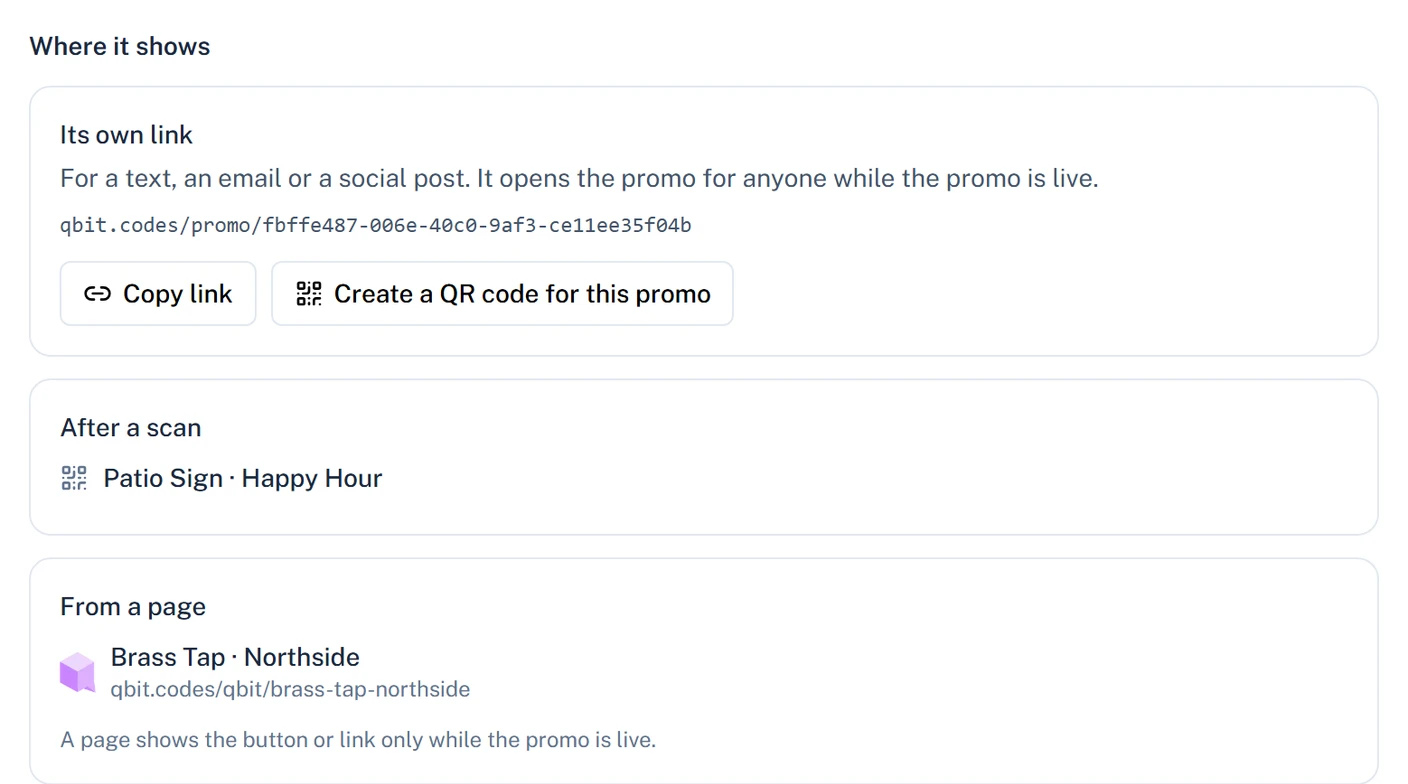
Every promo has its own link, for a text, an email, or a social post. On the Settings tab, under Where it shows, click Copy link. The link opens the promo for anyone while it's live.
To put the promo on a poster or a table tent by itself, click Create a QR code for this promo. The new code opens the promo directly.
The same section lists the QR codes that play the promo after a scan and the pages with a button or link that opens it. To open a promo from one of your pages, see Adding a promo to a page.
Keeping your team out of the numbers
A promo counts each person who watches it once a day. You and your team are never counted while signed in, and neither is a draft preview.
For a phone or tablet that isn't signed in, like one kept behind the bar:
- On the Settings tab, under Staff devices, click Copy link for a staff device.
- Open the link on that device.
From then on, promos watched in that browser aren't counted. To undo it, open the link again and turn on Count views from this device.
Managing your promos
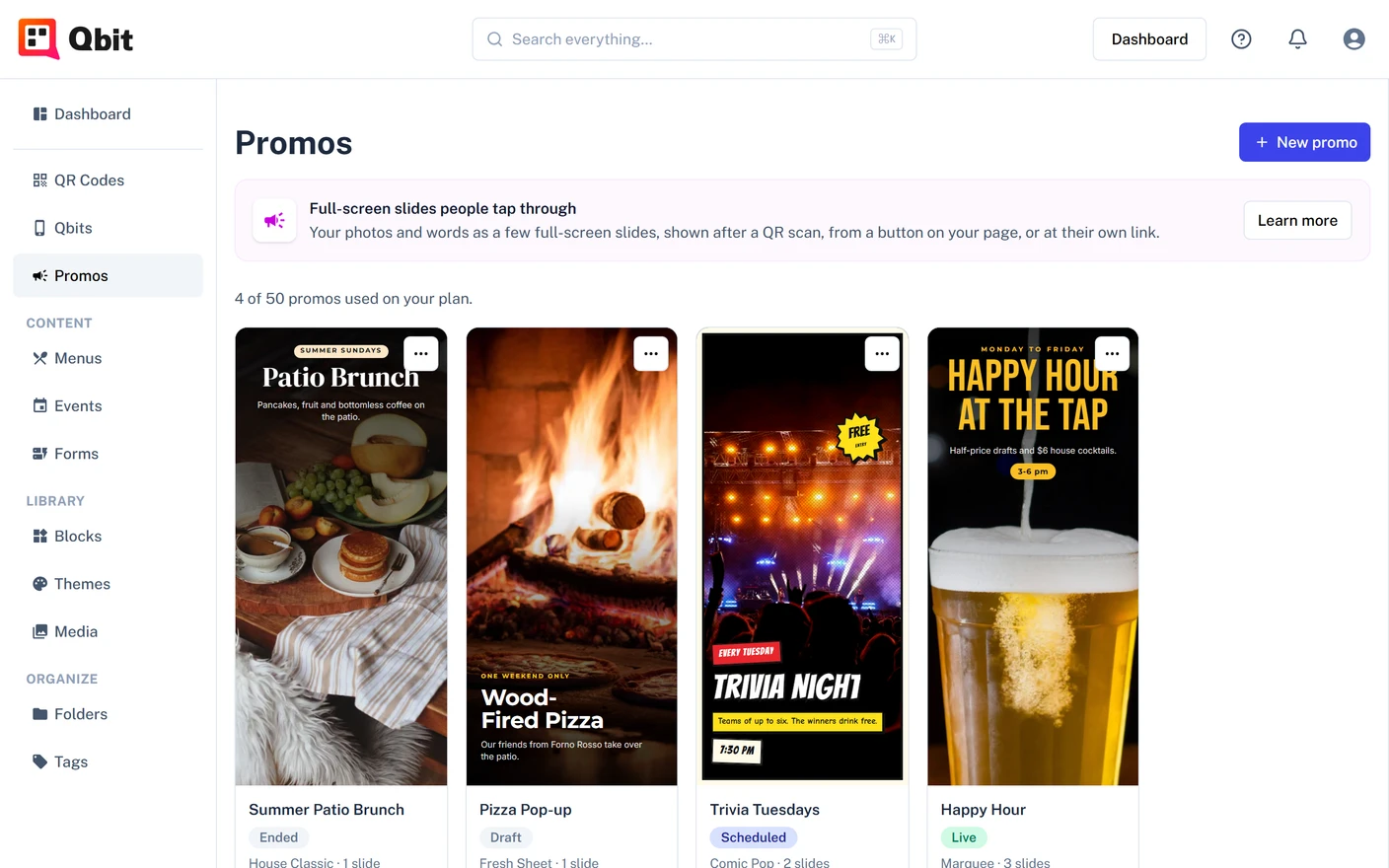
The Promos page shows each promo with its status and its views over the last 30 days. Open a promo's menu to rename, duplicate, or delete it, or to go to its results. See Reading a promo's results.
A photo can't be deleted from your media library while a promo uses it.
Plans
The Starter plan holds 3 promos, which you can build and preview. Publishing a promo and seeing its results need Premium or Team. Premium holds 20 promos and Team holds 50. See Plans and billing.
Still stuck? Email support@qbit.codes.