
Creating and managing events
Add events on a calendar, publish them, and keep them current.
Add your events once and Qbit keeps them organized on a calendar - and keeps the list on your pages current automatically. Events are included with Premium and Team plans.
Create an event
- Go to Events - you land on the calendar view.
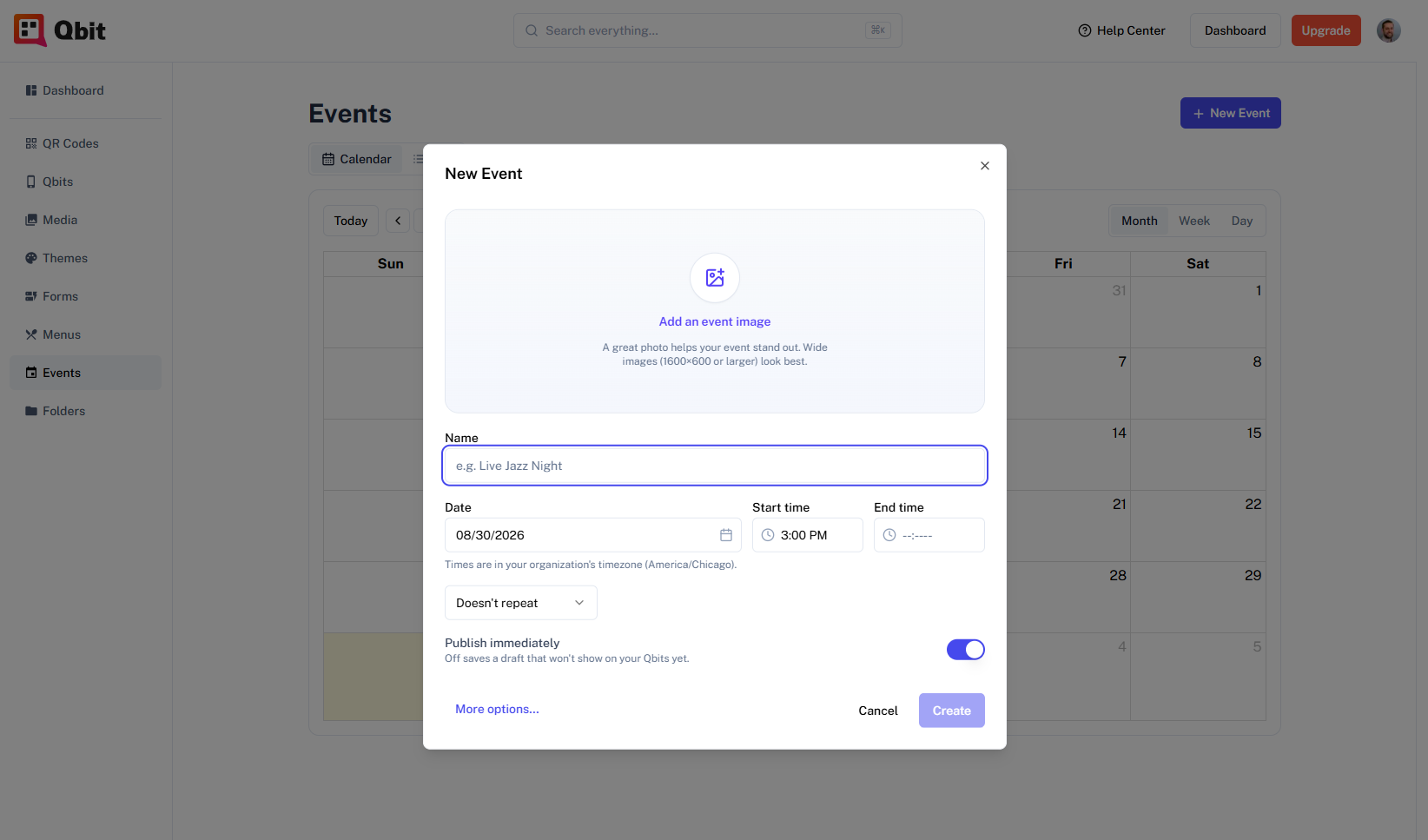
- Click any day (or New Event) to open the quick-create dialog: name, date and start/end time, an optional image, and a Publish immediately switch.
- Click Create - you land on the event's page to keep filling in details: description, location, a ticket link, or an RSVP form.
Times are always in your organization's timezone, so "7:00 PM" means 7 PM at your venue no matter where you (or your visitors) are.
Calendar or list - your choice
The Calendar / List toggle switches between two views of the same events:
- Calendar (the default): month, week, and day views. Drag an event to reschedule it, or drag its edge to change the duration. Click an event for a quick summary with publish, duplicate, and edit actions.
- List: a sortable table with search, filters, and bulk actions - best for cleaning up many events at once.
Draft vs. published
Every event is either a Draft (visible only to you) or Published (eligible to show on your pages). Publish and unpublish anytime - from the event's page, the calendar's quick summary, or the list's row menu. Only published, upcoming events ever appear to visitors.
The details that make it shine
- Featured image - shows on your page's event cards. Add one in the quick-create dialog or on the event page.
- Location - pick a saved location or create one inline; visitors can see the venue name and address.
- Duplicate - the fastest way to create a similar event. It copies everything and defaults the date to a week later.
- Have a flyer? Click Upload or paste it to autofill on the create page - drop in the flyer image (or a screenshot of the post), or paste its text - and Qbit extracts the name, time, venue, and details for you to review before saving.
Still stuck? Email support@qbit.codes.