
Recurring events
Weekly trivia, monthly markets - set a repeat and every date manages itself.
Trivia every Wednesday. Yoga at sunrise on Mondays and Thursdays. A market on the first Saturday of the month. Set the repeat once and every date manages itself.
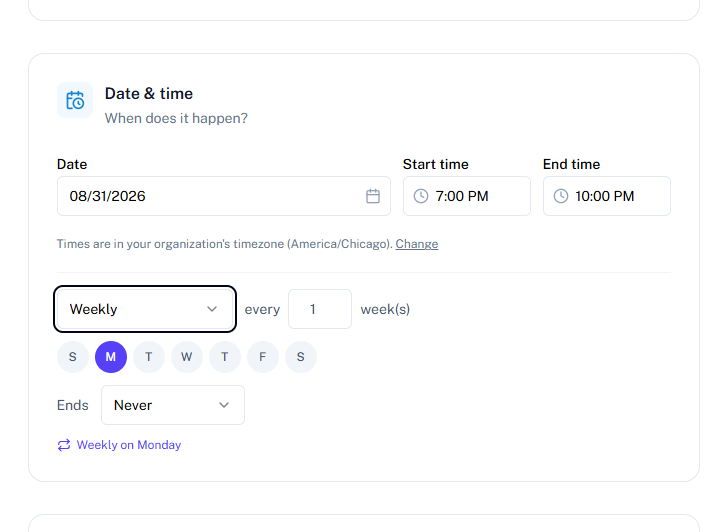
Set an event to repeat
- When creating an event, turn on Repeat in the Date & time section.
- Choose how often: Daily, Weekly (pick the weekdays), or Monthly - and an "every N weeks/days/months" interval if you need one.
- Choose when it ends: never, on a date, or after a number of times.
A plain-language summary ("Weekly on Wednesday, until Dec 31") confirms exactly what you're creating before you save.
Every date is its own event
Qbit creates a real event for each occurrence, all linked as a series. That means any single date can have its own image, description tweak, or cancellation - perfect for "this week's special guest" - without touching the rest.
Editing a series
When you edit, delete, or drag-reschedule a recurring event, Qbit asks what you mean:
- This event - just this one date.
- This and following events - this date and everything after it (earlier dates keep the old details).
- All events - the entire series.
The same choice appears when rescheduling by drag on the calendar, so "trivia moves to 8 PM from now on" is two clicks.
Good to know
- Repeats keep the same local time across daylight-saving changes - a 7 PM event stays 7 PM.
- Open-ended ("never" ends) series are created about two years of dates ahead - plenty of runway. When you eventually near the end, edit the series to extend it.
- On your published pages, visitors simply see each upcoming date in order - no "recurring" jargon.
Still stuck? Email support@qbit.codes.