
RSVPs, ticket links, and add-to-calendar
Let guests RSVP, buy tickets, and save your event to their calendar.
An event listing is good; an event a guest can act on is better. Each event can carry a ticket link, an RSVP form, and a one-tap add-to-calendar - and the buttons appear on your page automatically.
Ticket & info links
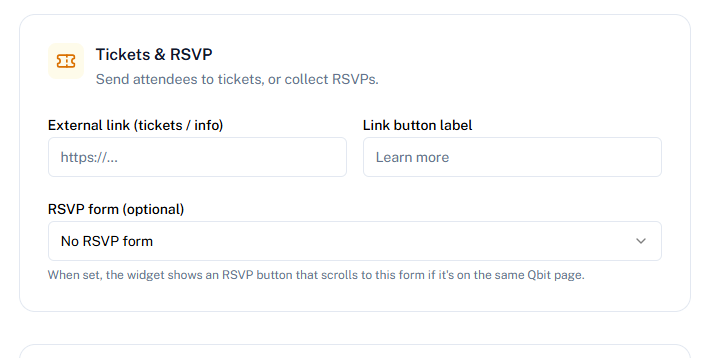
On the event's page, add an External link (your ticketing page, Eventbrite listing, or info URL) and an optional button label like "Get tickets". The button shows on the event's card on your page and opens in a new tab.
RSVPs with a Qbit form
Attach one of your Forms as the event's RSVP form:
- Create a form (Name + Email is a fine start) under Forms.
- On the event's page, pick it under Tickets & RSVP.
- Put the same form on the Qbit page that shows your events.
The event's card gets an RSVP button that jumps visitors straight to the form. Responses collect under the form like any other submission - the event's page even links you directly to them.
Add to calendar
Every event card can show an Add to calendar link. On a phone it opens the visitor's own calendar app with the event pre-filled - name, time, location, and your link - so saving it is one tap. On a computer it downloads a standard calendar file that opens in Outlook, Apple Calendar, or Google Calendar.
Times travel correctly: the event is stored against your venue's timezone, and every guest's calendar shows it in theirs.
Turning things off
All three actions are per-page toggles in the events element's Configure panel - show ticket links but hide add-to-calendar, or the reverse. An event without a ticket link or RSVP form simply shows no button, so mixed lineups look clean.
Still stuck? Email support@qbit.codes.