
Customizing your QR code's design
Colors, patterns, frames, and your logo - without breaking scans.
A branded code gets more scans than a plain one - and Qbit's design studio keeps it scannable while you style it. Design tools are included on every plan.
Where to design
- While creating a code, in the Design your QR code section, or
- Anytime after: open the code and click Customize design, edit, then Save.
The live preview updates with every change.
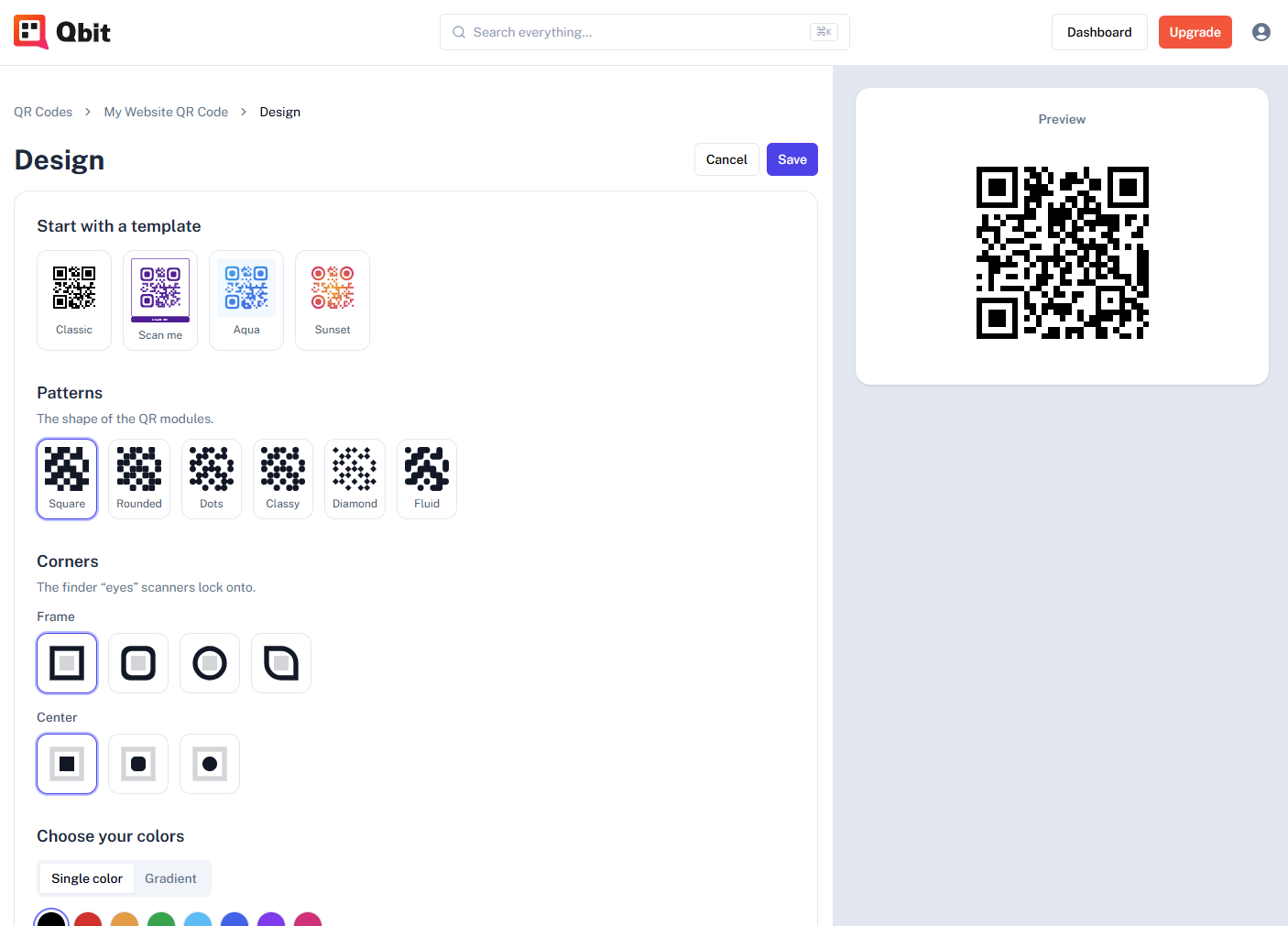
What you can style
- Start with a template - Classic, Scan me, Aqua, or Sunset give you a finished look in one click; tweak from there.
- Patterns - six module shapes: Square, Rounded, Dots, Classy, Diamond, Fluid.
- Corners - the finder "eyes" scanners lock onto: four frame shapes and three center shapes.
- Colors - a single color or a linear/radial gradient (with rotation control), preset swatches or any hex value, plus a background color or a fully transparent background.
- Logo or center text - upload a PNG, JPEG, or WebP (up to 8 MB) or add short center text (up to 6 characters). A size slider keeps the logo between 10% and 30% of the code.
- Frame - None, Box, a "SCAN ME" bar, or an arrow caption that invites the scan.
The scannability checks
As you design, live checks flag anything risky before it reaches a printer:
- Contrast - you'll be warned when the code and background colors are too close, and stopped when they're unscannable. Dark code on a light background is the safe zone.
- Logo size - logos above 30% are flagged. When you add a logo, error correction is raised automatically so the code still scans with the center covered.
- Transparent backgrounds - fine, with a reminder to place the code on a light surface.
Resolve the warnings and you can print with confidence - then test before you print anyway.
Still stuck? Email support@qbit.codes.