The Analytics page
What was scanned, where, when, and which promo was playing.
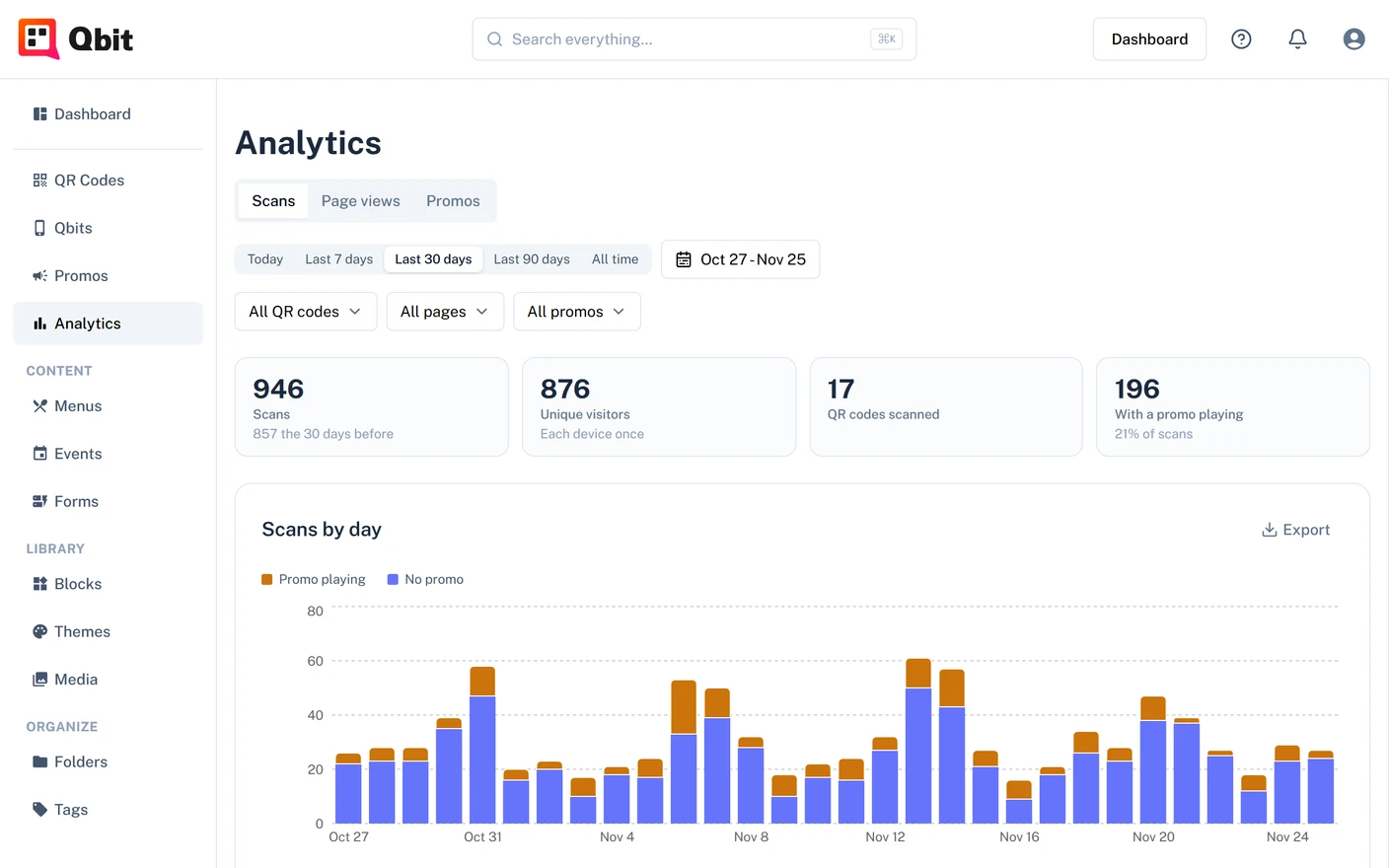
The Analytics page shows every scan of every code in one place: what was scanned, where, when, and which promo was playing at the time. It also shows what people did on your published pages. It is included with Premium and Team plans.
Where to find it
Click Analytics in the sidebar. To see one day, click its bar in the Scan performance chart on your Dashboard. The page opens on that day.
Choosing a period
The page covers the Last 30 days by default. Choose Today, Last 7 days, Last 90 days, or All time, or click the dates to pick your own range: click the first day, then the last. For a single day, click it twice. One period covers up to a year.
Click a bar in Scans by day to open that day. A single day is shown by the hour, with arrows to step to the day before or after.
Narrowing it down
Filter by QR code, page, or promo at the top of the page. Each tab offers the filters that apply to it. Clicking a row under Pages opened, Promo playing, or Where filters by it too. Click it again, or Clear filters, to go back.
Every number on the page follows the period and the filters. They are part of the page's address, so you can bookmark a view.
Reading the Scans tab
- Scans - every scan in the period, with the same number of days before it for comparison.
- Unique visitors - each device once.
- With a promo playing - scans made while a promo was showing on the code.
- What was scanned - each code, the page it opened, the promo that was playing, and its last scan.
- Every scan - the scans themselves, newest first, with the time, place, and device.
- Pages opened, Promo playing, Where, Devices, and When people scan - the same scans, broken down.
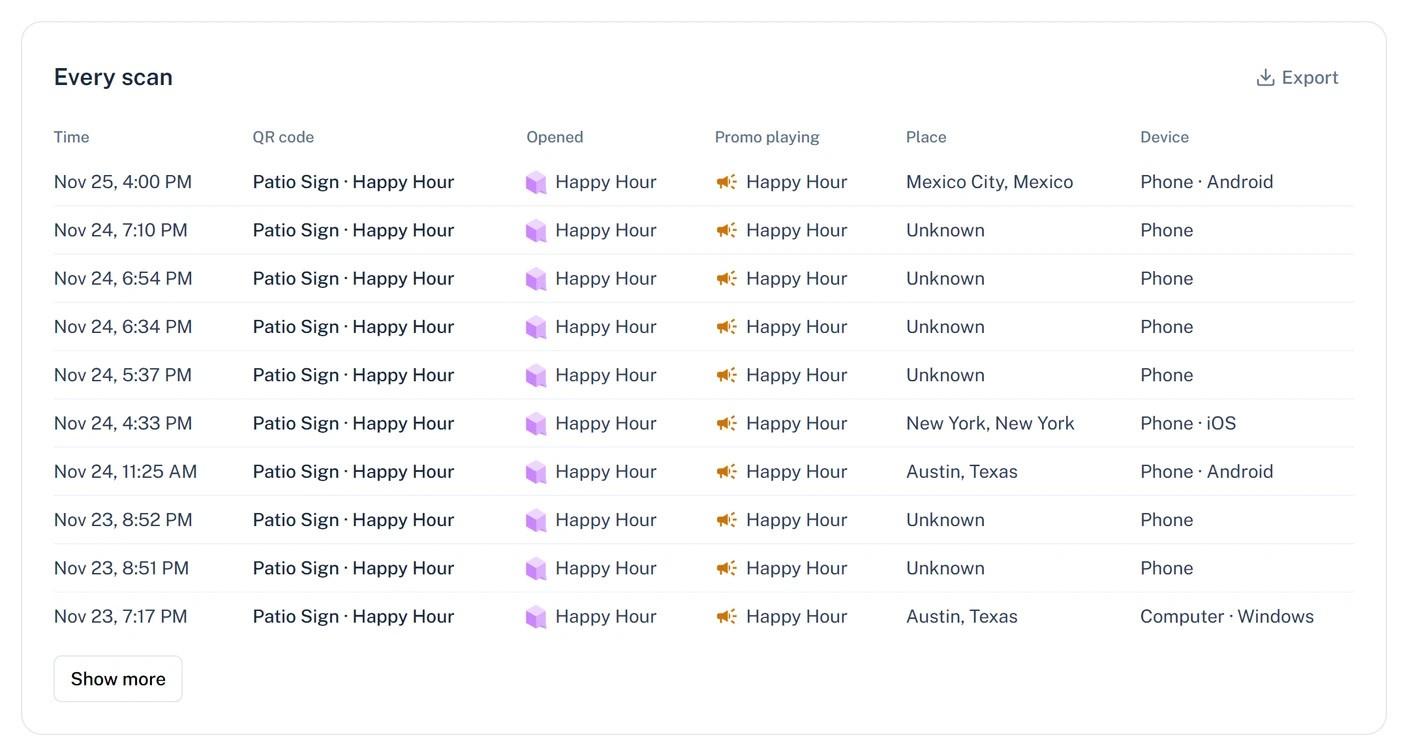
Opened is where the code led when it was scanned. If you change a code's destination, earlier scans stay with the page they opened.
From scan to tap
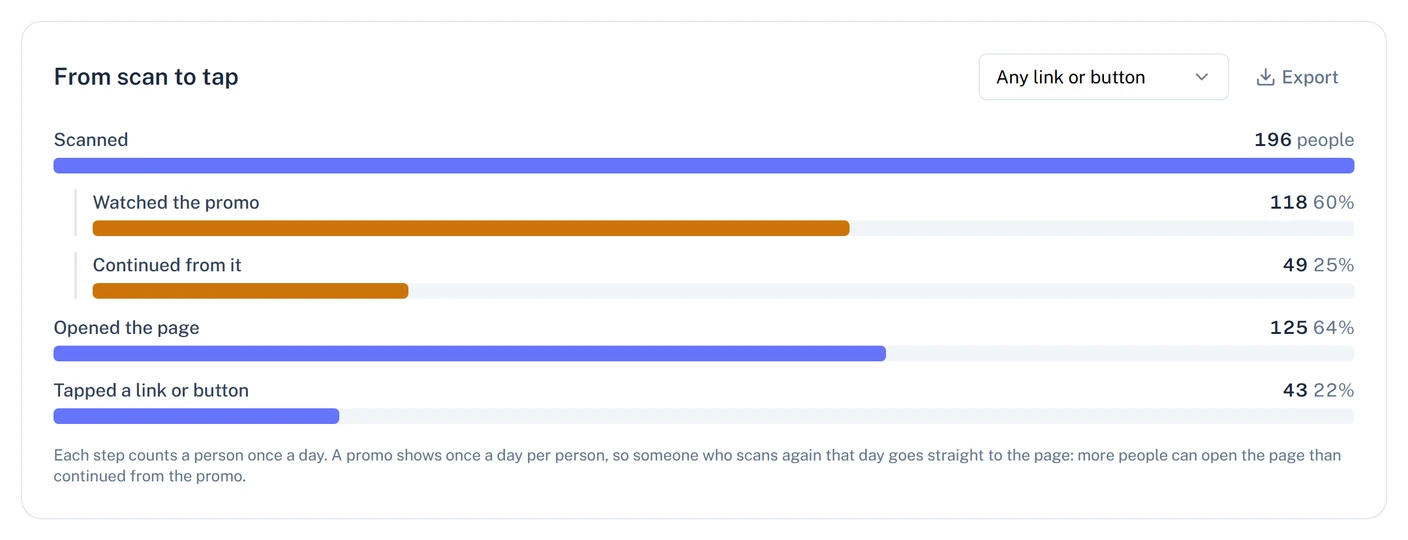
The From scan to tap card on the Scans tab follows each QR code from the scan to your page:
- Scanned - the people who scanned the code.
- Watched the promo and Continued from it - for a code with a promo playing.
- Opened the page - the people the code brought to your page.
- Tapped a link or button - of those, the ones who tapped something. Choose one button from the menu, such as Order online, to see how many tapped that instead.
- Scan to tap - the share of the people who scanned who went on to tap.
Every step counts a person once a day, so the steps can be compared. A promo shows once a day per person, so someone who scans again later that day goes straight to the page. That is why more people can open the page than continued from the promo.
With all codes shown, the card compares them side by side. Filter to one code, or open the code from QR Codes, to see its steps as a chart.
The page steps start on the day page views began to be counted. A period that starts earlier is shortened, and the card says so.
Reading the Page views tab
The Page views tab shows what happens once someone opens one of your published pages.
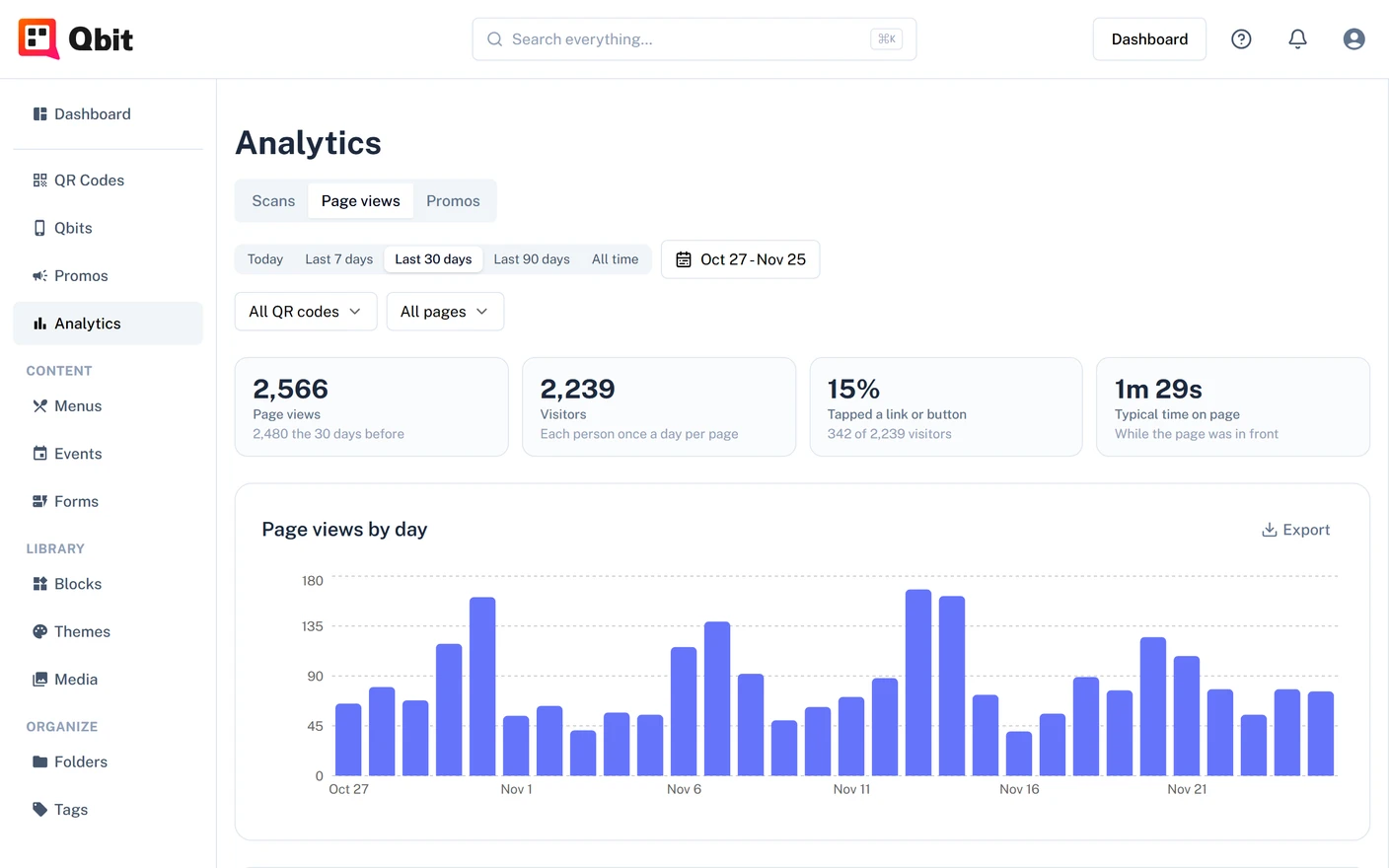
- Page views - each time a page was opened and stayed on screen for a second, or something on it was tapped.
- Visitors - each person once a day per page.
- Tapped a link or button - the share of visitors who tapped something on the page.
- Typical time on page - how long a typical visitor kept the page on screen.
- What people tapped - each link and button, by the words on it, with how many taps and how many visitors tapped it.
- Where visitors came from - the QR code they scanned, another of your pages, or the website that linked to it. Click a QR code to see only the visits it brought.
Page views are counted from the day this tab was added; earlier visits were not recorded. Your own visits aren't counted when you open a page from Qbit or with a QR code's Test link. To leave out a phone or tablet your team uses, open the staff device link on it, as described in Creating a promo. Nothing is stored on a visitor's device, so someone who comes back another day counts again.
Reading the Promos tab
The Promos tab adds all your promos together: views, people reached, how many watched to the end, tapped a button, or continued to your site, and where the promos were seen. Click a promo to open its own results.
Exporting
Click Export on a card to download what it shows as a CSV file. Every scan exports the whole period, not only the rows on screen.
What counts and what doesn't
- Test scans and automated traffic, such as search crawlers and link previews, aren't counted. See Why aren't my scans showing up?
- A promo shows once a day per person, so a scan with a promo playing is not always a promo view.
- Places come from the visitor's network, so they are approximate.
- Days and times follow your business's time zone.
- A code you delete keeps its scans here, marked (deleted).
Still stuck? Email support@qbit.codes.