
Scheduling where a QR code leads
Open a different page at set times, every week or on dates.
A schedule lets one printed code open different pages at different times: the lunch menu by day, the dinner menu after 5 pm, the event page on the night of the event. Outside the scheduled times, the code opens its usual destination.
Add a scheduled time
- Go to QR Codes and open the code.
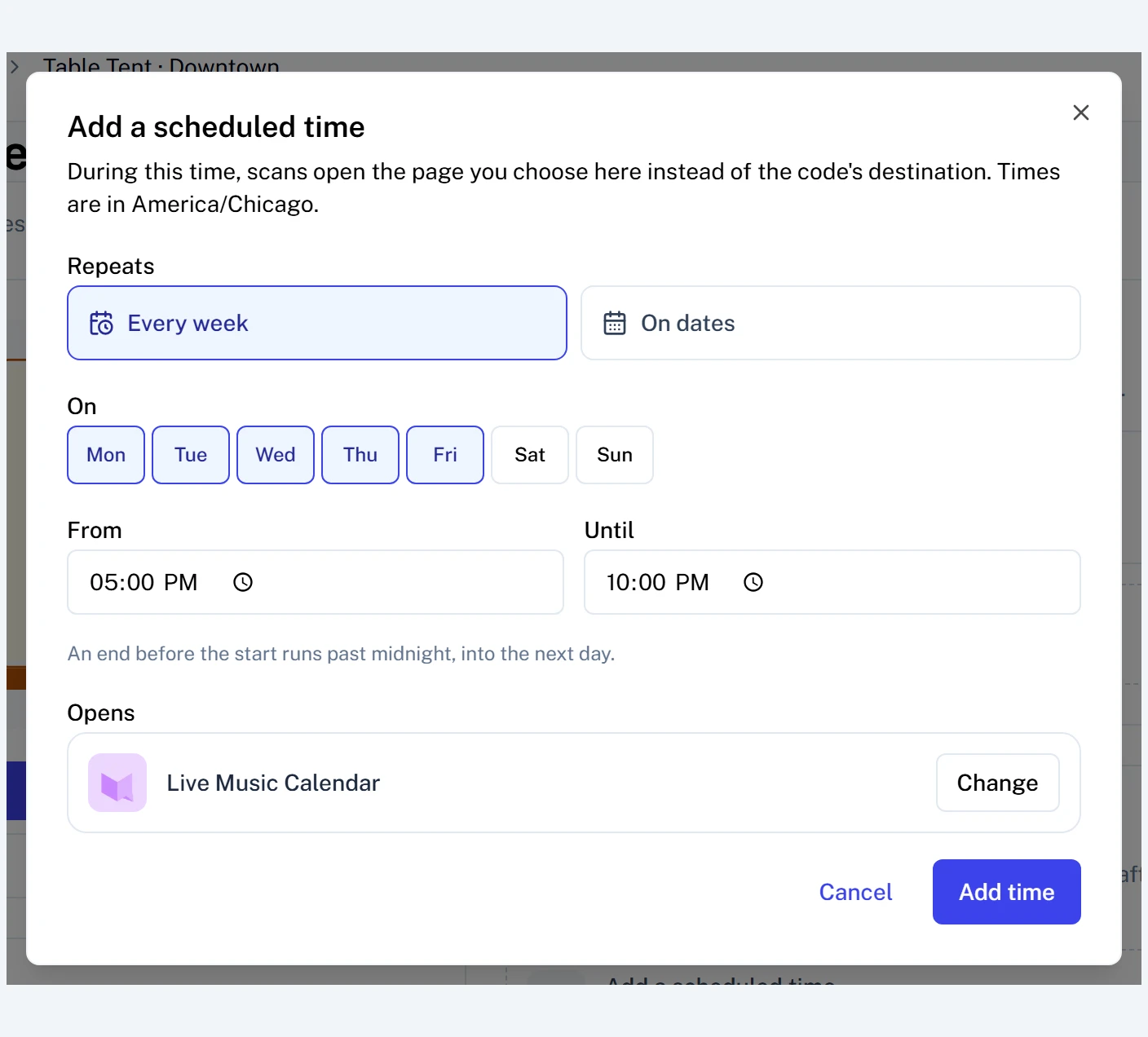
- Under Schedule, click Add a scheduled time.
- Choose how it repeats:
- Every week: pick the days and the times, for example Mon to Fri, 5:00 PM until 10:00 PM. An end time earlier than the start runs past midnight into the next day.
- On dates: pick a start and an end date and time, for example Dec 6, 6:00 PM until Dec 7, 12:00 AM.
- Under Opens, click Choose and pick a Qbit or an external site.
- Click Add time.
Scans follow the schedule from the next scan on. The time that is running right now is marked Now.
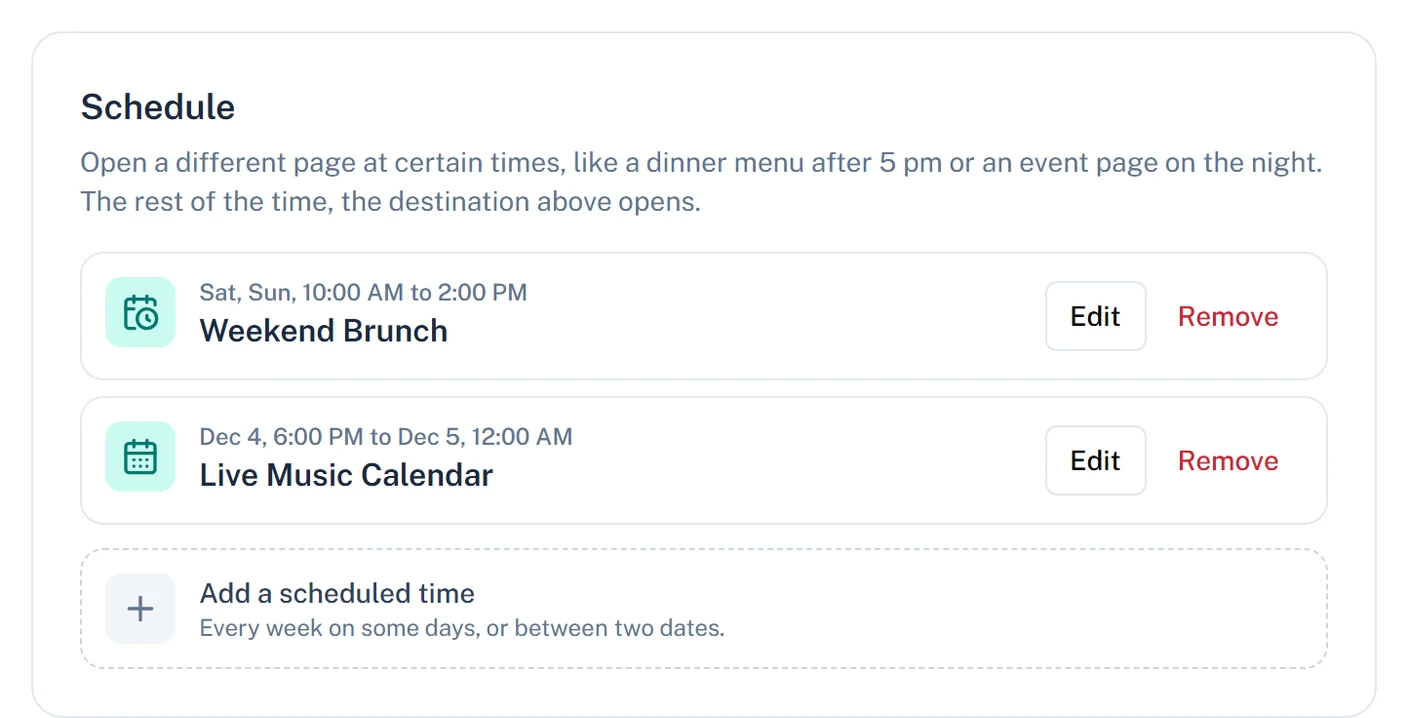
How times are read
- Times are in your organization's timezone, under Settings → General, Timezone. Changing it moves every schedule with it.
- A dated time wins over a weekly one, so an event night can take over from your usual dinner menu.
- If two weekly times overlap, the one higher in the list wins.
- A dated time that has passed is marked Ended. Remove it when you no longer need it.
Good to know
- A schedule changes only where the code leads. If the code has a promo, it still plays first.
- If a page in the schedule is deleted, that time is skipped and the code opens its usual destination.
- Scheduling is part of the paid plans. A schedule you set up keeps working if your plan changes.
- The Flow map shows every scheduled destination as its own arrow, with the one running now drawn solid.
Still stuck? Email support@qbit.codes.