Seeing where your codes lead with Flow
One map of your codes, promos and pages: how many people take each step, zones and notes, and connecting them by dragging.
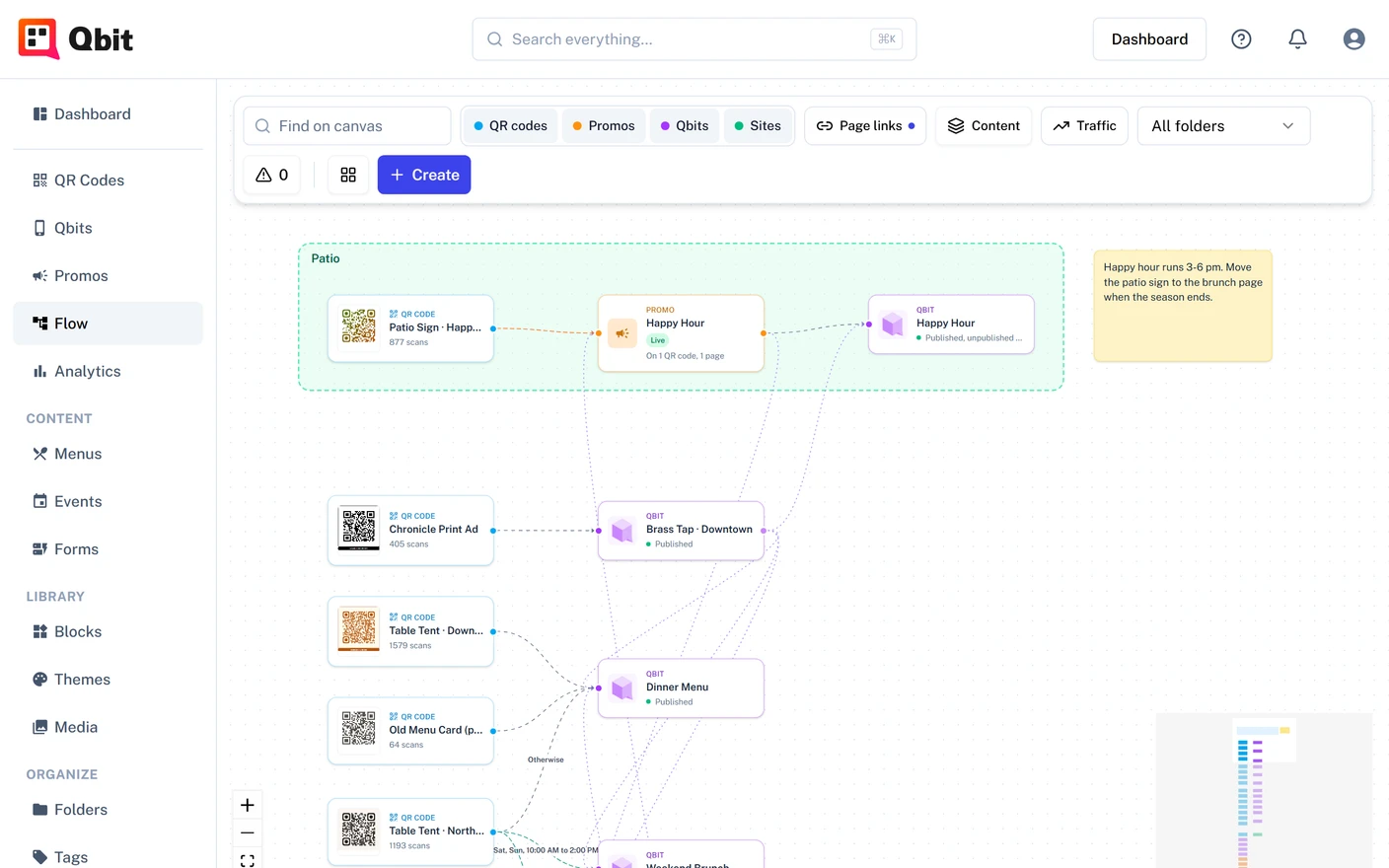
Flow shows every QR code, promo, Qbit page and website you use on one map, with arrows for where each scan goes. Open it from Flow in the side menu.
Reading the map
| Card | What it is |
|---|---|
| QR code (blue) | One of your codes, with its scan count. |
| Promo (orange) | A promo, with whether it is live, scheduled, paused, ended or a draft. |
| Qbit (purple) | One of your pages, with whether it is published. |
| External site (green) | A website address a code sends people to. |
- A solid arrow is the path a scan takes: from the code, through its promo if it has one, to the page or website.
- A dotted purple arrow is a link a page or promo makes with a button or menu item. Turn Page links off to hide them.
- A teal arrow is a scheduled destination, labeled with its times. The one running now is solid and marked Now; the code's usual destination is marked Otherwise.
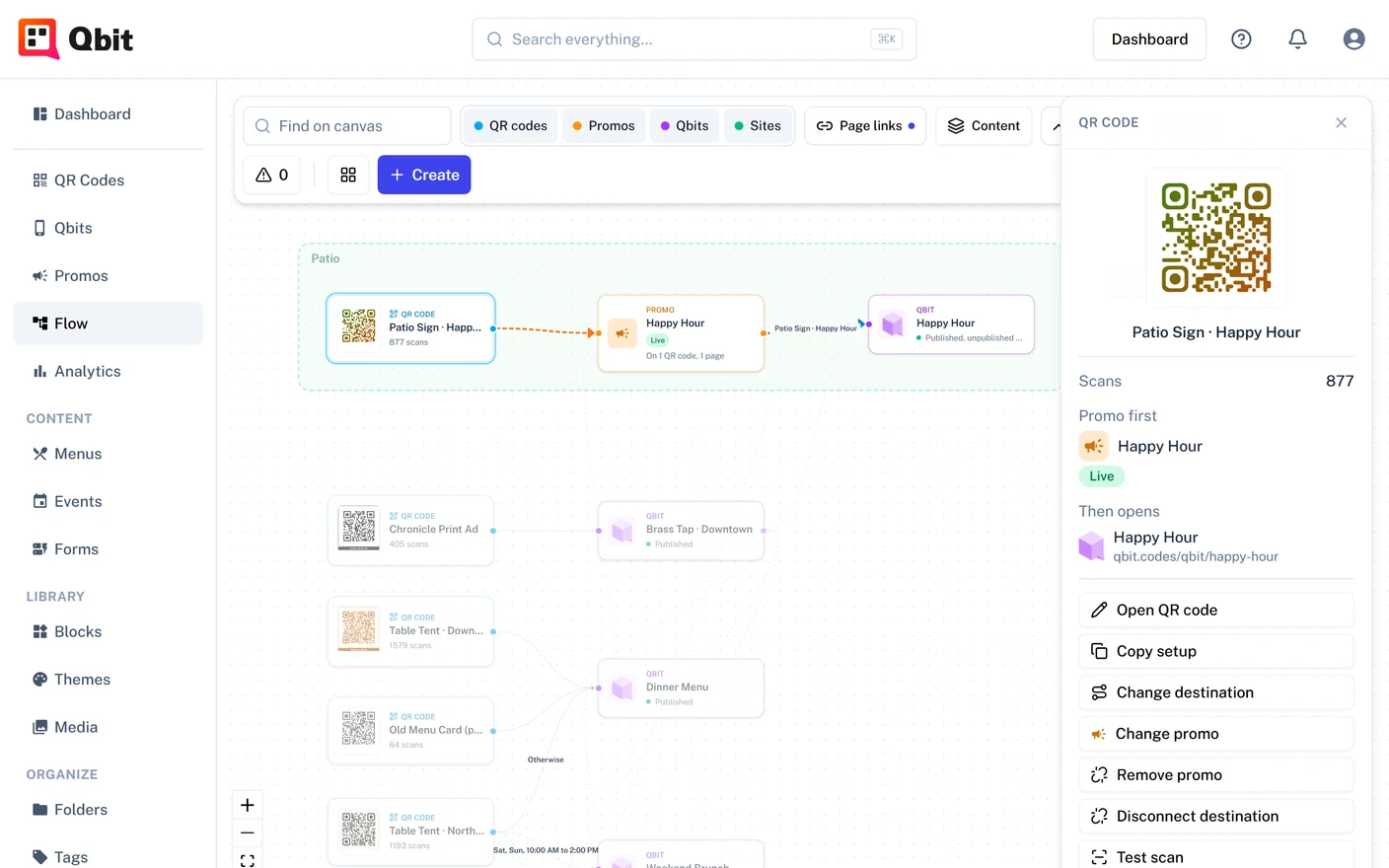
- Click any card to light up every path through it and see its details on the right.
Menus, forms, events and Blocks
Open Content in the toolbar and turn on Menus, Forms, Events or Blocks to add a card for each, with a grey arrow from every page or Block that shows it. Use this before you change or delete something: click a menu, for example, to light up every page that shows it and every QR code that opens those pages.
- Each card says how many pages show it, counting pages that show it through a Block, and whether it is unpublished or switched off.
- Click Open menu, Open form, Open events or Open Block in its details to edit it.
Seeing traffic
Turn on Traffic in the toolbar and pick Last 7 days, Last 30 days or Last 90 days. Each card shows how many people scanned, watched or visited it, and each arrow shows how many took that step, for example "80 watched" into a promo and "55 opened" onto the page. Busier arrows are drawn wider.
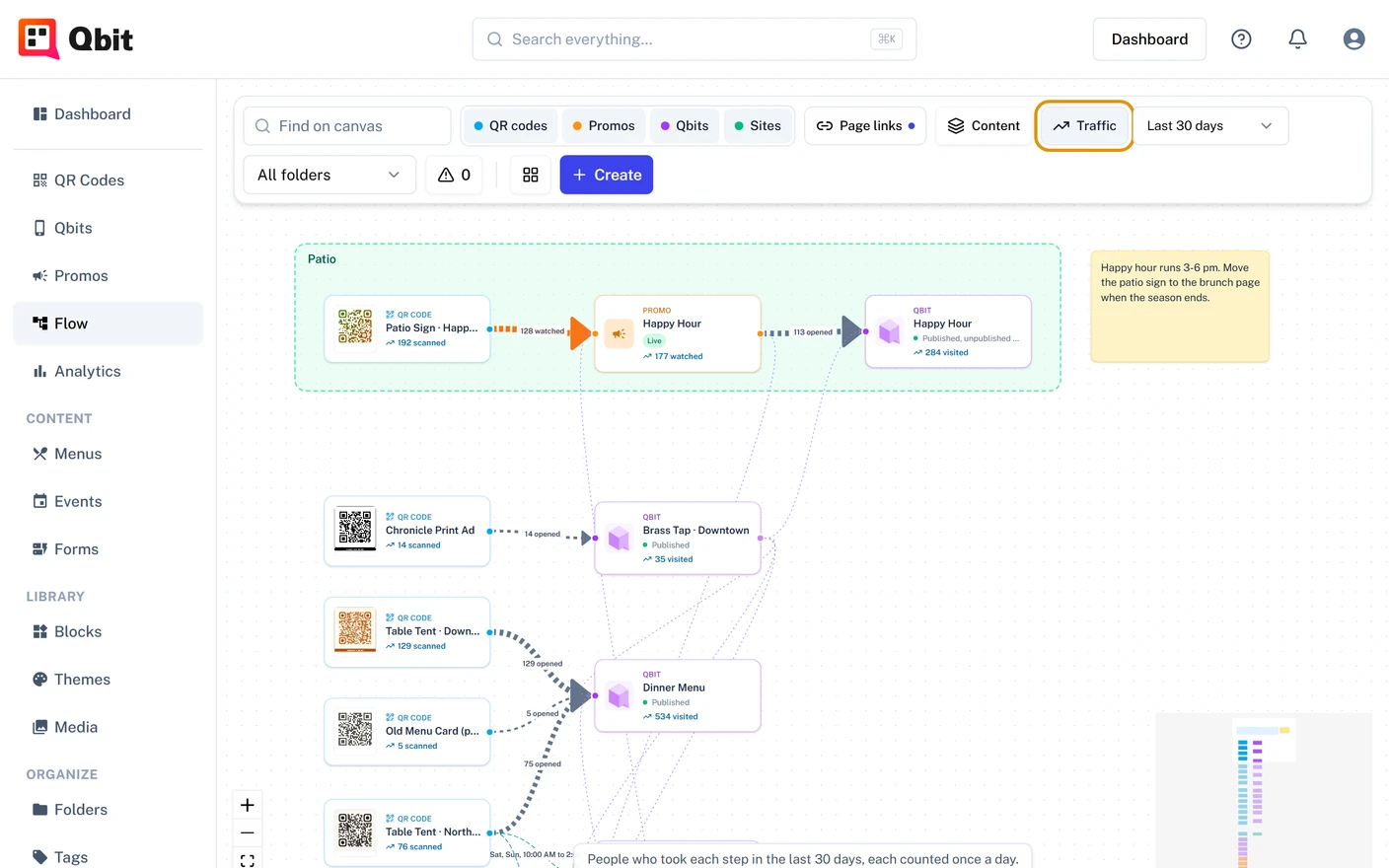
- A person counts once a day at each step, as on the Analytics page.
- An arrow from a promo's button to a page has no number: that visit can't be told apart from any other link.
- Traffic is part of the paid plans.
Fixing what needs attention
The warning button in the toolbar counts everything that stops people getting where they should. Click it to see the list, worst first, each with its fix:
| Problem | Fix |
|---|---|
| A code has no destination. A promo alone is not enough, since it plays on the way to a destination. | Choose destination |
| A code opens a page that is not published | Publish page |
| A promo on your codes has ended or was never published | Remove from QR codes or Open studio |
| A promo on your codes is paused | Open studio |
| A button on a live page or promo opens a page that is not published | Publish page or Open editor |
| A code or page is blocked | Contact support |
Click a problem to jump to its card. Show only codes that need attention at the bottom of the list hides everything else.
Connecting on the map
Changes on the map are live: the next scan of any printed copy follows them.
- Hover a QR code card and drag from the dot on its right edge.
- Drop it on a Qbit, an External site or a Promo card to connect it.
- Or drop it on empty space and choose New Qbit, Existing Qbit or website or Show a promo.
To disconnect, select an arrow from a code and press Delete, or use the buttons in the code's details. A code's promo and its destination are separate: changing one keeps the other.
Every change shows a message with Undo, which puts back what each code had before.
Many codes at once
- Hold Shift and click each QR code, or hold Shift and drag a box around them.
- Drag from the dot on any of the selected codes and drop it on a Qbit, an External site or a Promo. Every selected code is connected.
The panel on the right offers the same for the selection: Choose destination, Show a promo first, Remove promo and Disconnect destination. If some of the codes already play a different promo, you are asked before it is replaced.
Links between pages come from their buttons, so you change them in the page editor. Select a page and click Open editor.
Arranging the map
- Drag cards anywhere. Positions are saved for everyone in your organization.
- Click the grid button to arrange everything automatically.
- Use the search box, the type filters and the folder menu to focus on part of the map.
Copying a setup
Opening a second location or starting a new campaign? Copy a code's whole setup instead of rebuilding it:
- Click the QR code on the map, then Copy setup in its details.
- Name the new code.
- For its page and its promo, choose to use the same one, or Make a copy to edit.
- Click Copy setup.
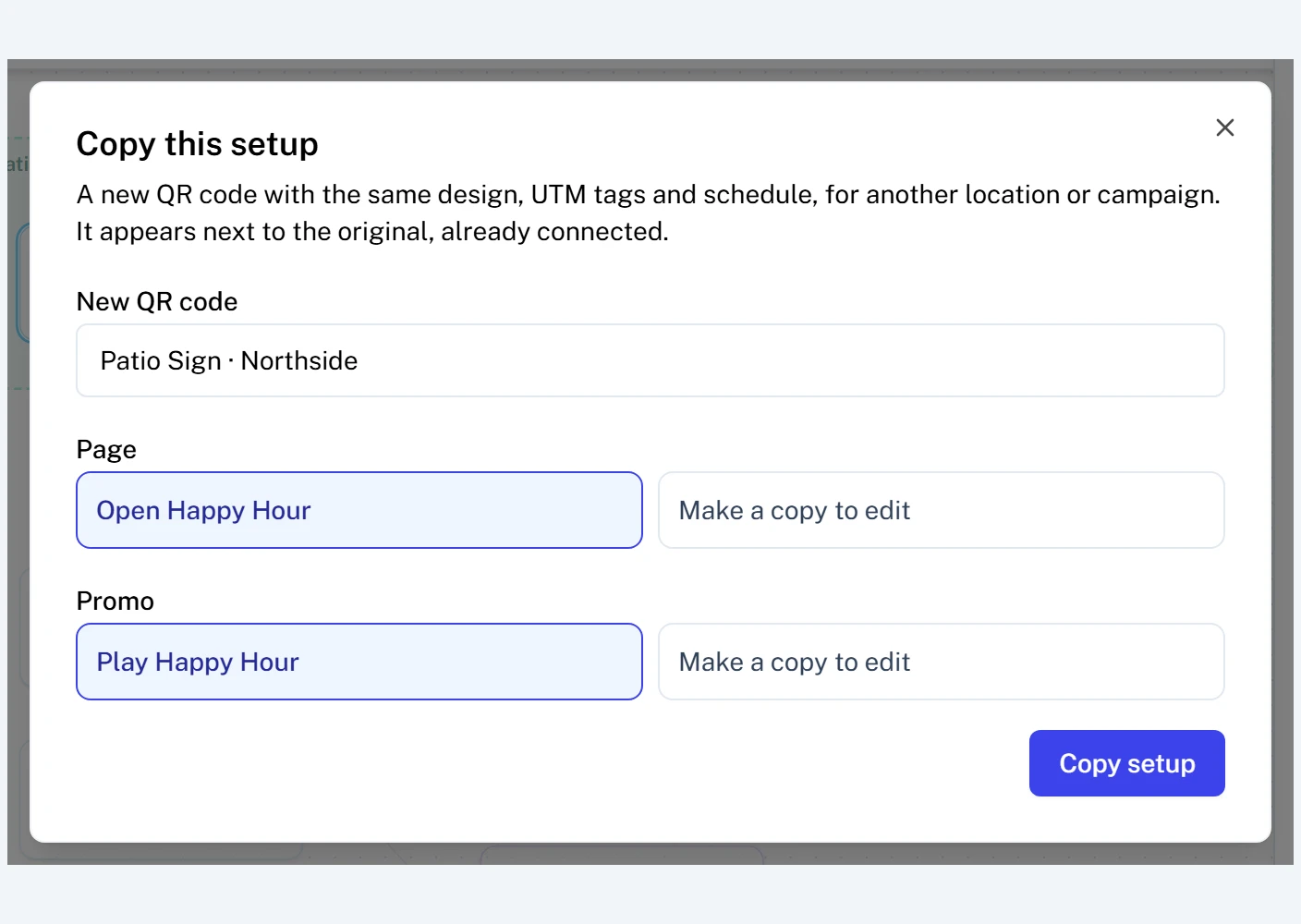
The new code keeps the original's design, UTM tags, schedule and folder, and appears just below it, already connected. A copied page is published straight away. A copied promo starts as a draft: publish it in the studio for scans to play it.
Zones, notes and floor plans
Lay the map out like your venue or campaign. Open Create and, under On the canvas, choose:
- Zone: a named, coloured area such as "Patio" or "Front window". Drag cards into it, and they move with it when you move the zone.
- Sticky note: a note for your team.
- Floor plan: a picture from your media library, shown behind everything, so you can place each code where it is printed.
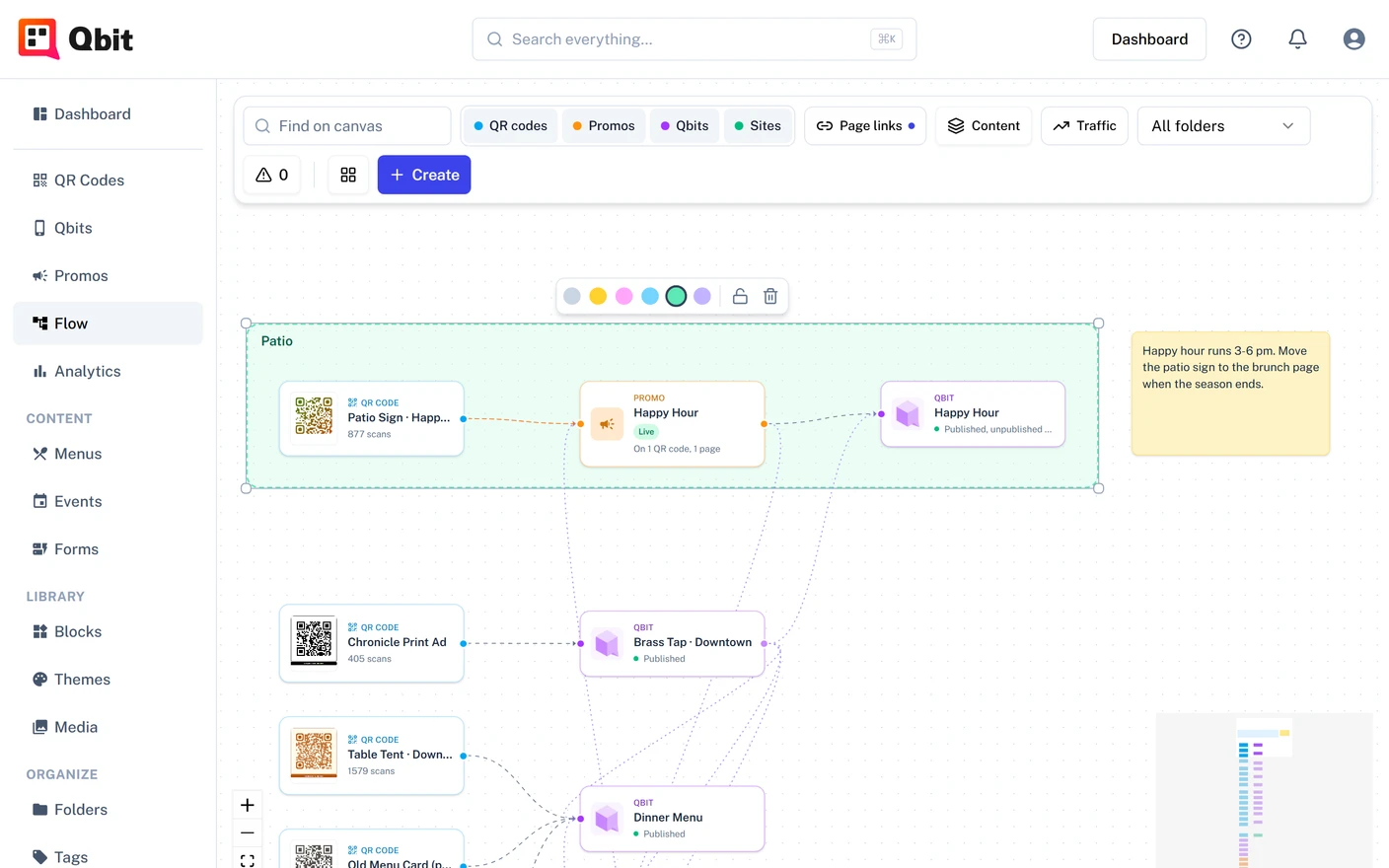
Double-click a zone's name or a note to edit it. Select one to change its colour, resize it, Lock in place so it can't be moved by accident, or Delete it. For a floor plan, click Change picture. Everyone in your organization sees and can edit the same zones, notes and plans.
Related: Changing a QR code's destination after printing, Creating a promo, Adding a promo to a page.
Still stuck? Email support@qbit.codes.